NAVIGATION

Enter a search key word or phrase.

Showing posts with label TUTORIALS. Show all posts

Friday, July 20, 2012

HOW TO REPAIR MBR ON WINDOWS 7


Sometimes you can corrupt Windows' MBR (Master Boot Record) unintentionally, through installation of another operating system for instance, and you need to repair it before Windows can boot again. The error message that you usually get is "Operating System not found". Under Win 95, 98 and ME, you could have used a standard MS-DOS utility called FDISK in the Command Prompt console. However, FDISK is not distributed with Win NT, 2000, XP, Vista, and 7. So you either have to resort to finding an alternative utility called MbrFix.exe and run it from floppy, optical or USB drive or follow these direction from the installation DVD to repair your MBR. While these directions are specific to Win 7, you maybe able to use the knowledge gained to apply to your particular Win install.

Instructions

Step 1:
Insert Win 7 installation DVD and boot from DVD drive. While in some older systems you may have to change boot order through system BIOS, most newer systems allow booting from DVD without changing boot order by simply clicking on any key when prompted to doing so.

Step 2:
Choose your default "Language", "Time", and "keyboard Input" on the first window and click next.

Stepp 3:
You're now presented with 3 choices. Click on

COMPUTER REPAIR- WHAT YOU NEED TO KNOW


Has your computer been testing your patience for a long time? Picture this: you're in the middle of emailing a crucial report to your boss when suddenly, your computer freezes and doesn't respond to your desperate mouse clicks. Or it restarts every now and then, and you wonder why it happens all the time. Don't lose your cool-having your computer repaired can still revive the operation of your machine. If your computer is acting up, don't ignore the symptoms, either. Computer repair should be done as early as possible to prevent further troubles.

It's interesting to note that many people own computers but only a few of them know how to fix computer problems. Usually, computer owners seek the help of computer technicians to correct or solve the problem. That's why computers repair shops proliferate everyday and make lots of money from their customers.

If you're looking for a computer technician, you can find many business cards and fliers that advertise pc repair services. It'd be better if you take your computer to a small repair shop in your locality because its services are less expensive than that of large PC repair shops.

It's not enough to rely solely on the expertise of the person you hired to repair your computer. Try to keep yourself informed about computers so that you won't be deceived by unscrupulous technicians. Also, make sure that the technician you hire is competent and skilled enough. A good repair person can accurately diagnose the problem of your computer and provide a reasonable estimate of cost and repair time.

Always make sure the amount that repair shops charge you is fair. If you think the cost of repairing your pc is expensive, you can request for a detailed description of the tasks that were done and the price of each. If you're still not convinced, then you can try negotiating the price. Asking the repair shop to lower their charge can pay off in some instances.

DONTs OF COMPUTER REPAIRS

What not to do. Do not shell out for such programs like Norton Anti Virus, Mcafee Anti Virus, or any other over priced program. These programs expend more on advertising than on the quality of their product, and most will not assist you in your mission to get your home computer repaired. Also there are programs obtainable only by way of the internet which will not resolve any of your home computer repair problems and only make your bank account decrease.

Some programs are, Registry Repair, Registry Cleaner, Reg Mechanic, and Reg Cure. These programs will cause you a lot greater harm than benefit, and there are not a lot of ways to get help in the occasion you do not recognize how it works.

I have experimented with most of the programs in one way or more on my home computer. You can discover a lot of them when you do a very easy Google query for "home computer repair". I have thus far not found one program that works effectively for a broad variety of computer repair problems. There are a number of programs that function well for very precise list of home computer repair jobs, the problem then is in recognizing your individual issue, and can it be fixed without spending money; often the answer is yes!

In the occasion I do ever find a program that can resolve a lot of the normal home computer repair issues, I won't delay in endorsing the program and I will profit monetarily. You have been warned. I am human and this is what I love to do, if I can get paid for it, while staying honest, I will. Until then, on with the free home computer repair counsel and instruction...

Home Computer Repair - how did I learn?

How do I identify how to repair home computer repair problems? I have learned a lot, diverse things from different programs that I had to buy. I educated myself that these programs were not doing anything really complicated, everything I knew I could do myself .

Tuesday, May 1, 2012

How To Change Your IP Address

How To Change Your IP Address


1. Click on "Start" in the bottom left hand corner of screen
2. Click on "Run"
3. Type in "command" and hit ok

You should now be at an MSDOS prompt screen.

4. Type "ipconfig /release" just like that, and hit "enter"
5. Type "exit" and leave the prompt
6. Right-click on "Network Places" or "My Network Places" on your desktop.
7. Click on "properties"

You should now be on a screen with something titled "Local Area Connection", or something close to that, and, if you have a network hooked up, all of your other networks.

8. Right click on "Local Area Connection" and click "properties"
9. Double-click on the "Internet Protocol (TCP/IP)" from the list under the "General" tab
10. Click on "Use the following IP address" under the "General" tab
11. Create an IP address (It doesn't matter what it is. I just type 1 and 2 until i fill the area up).
12. Press "Tab" and it should automatically fill in the "Subnet Mask" section with default

Wednesday, April 18, 2012

Before You Format YOur System

Before you Format your System

Sometimes we format our systems to avoid from slow and error problems. Formatting is nothing but erasing all the data. So keep your important files and folder (photos, document and softwares). This article is what you have to do before you format your system.

You thing is backup your important data from C drive to other drives. Desktop and my documents folders also backup to other drives because these folders are in C drive. So backup all other data, other users desktop and my documents.

Second thing is motherboard drivers. If you have a motherboard drivers CD, then start the formatting process. If you don’t have a motherboard CD, then you go to device manager and note your display, sound and LAN drivers manufacture companies. After you download your motherboard drivers and then you start the formatting processor. 

Monday, April 16, 2012

How To Clone A Hard Drive

Most of the users used the computer to store their important data. These data might be download or taken from the friend. There is a vast of collection that you store. These media files include yours personal or non personal data. You also prefer to store your office data on it. Most of the users are not aware the use of the computer uses and its crashes. There is many type of crashes such as blue screen or the dump memory error. Crash is the conditions in which your computer can't starts or work properly due to some internal or external problem. You even can't show the information of your computer. There are many reasons of your computer crash. Some of them are hardware, software, virus, registry and many other causes of your system crashes. These crashes may lead your system to the physical dump memory messages. This type of messages is harmful for your system. For that; you need to overcome the problem by making the copy of your data or backing up your data.
These crashes lead your system to the hard disk failure. Hard disk failure is that situation in which your system can't boot properly. There are many causes such as hardware, software, registry viruses and many others. Hardware fault tolerance is the major cause of the hard disk failure. It damages your whole system also the loss of your important data. You can easily prevent from this type of disaster by using redundancy module. In this module, one is the active and the other are on standby. One of the major cause that is harmful for your system, which is the use of unregistered software installing on your system. Most of the disk failure is occurred due to this software on your system. Viruses are also the cause of the disk failure. It can damage the whole system data.

Why YOu Should Upgrade Your Ram

Like human have souls, similarly computers do have the souls as well in guise of computer memory that comes in three forms named Random Access Memory or RAM, the Read Only Memory or ROM and the hard disk memory. With the continuous and constant development in technology, computer memory is also undergoing constant up-gradations.
However, proper and effective functionality of computer completely depends upon the size of its memory i.e. be it RAM, ROM or hard drive. In the earlier days of computer, even 640K of memory was sufficient for a computer user but as time changed the needs and requirements as well as the usage of computer also changed. Today, even a gigabyte of RAM is not enough to run the applications and store other important data and documents. So to fulfill the expectations of computer users, various technical companies have started manufacturing high-end RAM such as 512mb Pc2100 DDR 266mhz Sodimm memory and Cl2 5 Pc2100 DDR 266mhz memory.
Moreover, before installing updated RAM on your computer or laptop, it is quite important to keep in mind some vital points to choose the best so as to avoid any kind of future issue or problem. Random Access Memory or commonly known as RAM is a form of temporary data storage and DRAM and SRAM are its two main types. DRAM that is Dynamic RAM is the most commonly opted type of RAM due to its low cost whereas SRAM, Static RAM does not require being constantly refreshed. Still, with this continuous updation of RAM, choosing the mostcompatible RAM form and size for computer has become difficult.
As few of these devices are costly so it is sometimes impossible for small business houses a

Tuesday, April 10, 2012

5 Common Disk Burning Mistakes And How To Avoid Them

Though some people speculate that DVDs and optical drives in general are on their way out, the truth is that compact discs and DVDs will probably be with us for awhile. One of the major problems with burning DVDs is that they're often difficult to create reliably without any problems. There are plenty of mistakes that users commonly make that waste discs and time when burning DVDs. Here are the top five DVD burning missteps as well as how to avoid them.
Setting The Speed Too High
DVD burners and multipurpose optical drives are rather amazing creations when you think about it, capable of writing millions of bytes of data per second to discs flawlessly under most circumstances. Still, they are operating at thousands of revolutions per minute and aren't completely infallible. To ensure that your DVD replication doesn't result in errors, select a write speed of 8X.
Using Deficient Media
Not all blank discs are creating equally, and using lousy DVD-Rs or DVD-RWs is the surest way to create a disc that won't work when you pop it into the tray the next time around. To avoid this annoying scenario, make sure that you only use the best DVDs you can find. Spending a little extra on optical media can save you a lot of frustration further on down the line.
Forgetting to Verify Your Disc

5 Tips To Do It YourSelf; Personal Computer Restore

1) An extremely fundamental but extremely useful tip when managing personal computer difficulties is the Control-Alt-Delete scorching key combo. Hold down the Manage and Alt tips simultaneous after which strike the particular erase switch. When completed as soon as, this can open the actual Job Supervisor within house windows, allowing you to finish virtually any deterioration applications. If done two times, it'll reactivate the computer, with any luck , resolving the mistake inside the restart.
2) Internet sites will certainly usually set up info in your pc with out the knowledge, generally referred to as malware. This really is what has occurred should you find which your house page offers altered into a various website. In order in order to avoid this issue, it's best to be able to improve your anti-spy computer software often. You'll be able to effortlessly change your home page back, but be aware of the particular backlinks an individual click about different websites.
3) Among the more frustrating things regarding PCs can be determining how to un-install the program which is defective or even that's just taking on an excessive amount of room. The majority of working techniques permit you to access the actual control panel from the begin food selection. In the control panel click applications (Within Experience, that says Add/Remove Programs), and after that select Uninstall a System. At this point you can see the different programs and merely click on Un-install. This might take a couple of minutes, but will eliminate the particular program.....

Friday, April 6, 2012

TIPS TO CONSIDER BEFORE BUYING A NEW LAPTOP


 Plan to Buy New Laptop !!! Confused ??? read this to get  solution

How to choose a laptop as needed ? First read about Laptop Review of the Year , Top Bran Laptop and Check out some quick tips below:

First determine its usefulness, whether the laptop will be used to design and gaming, to develop the system, or mobile.


- If the laptop is used for the purpose of design and gaming, should you choose the specifications of the laptop with an emphasis on the Screen Size, VGA card (Video Graphics Array) and a reliable memory. If you want a laptop with a higher capacity, choose a multi-core technology and 64-bit architecture is highly recommended. For the use of  Design Graphic or Gaming, you should choose a laptop with a VGA high-power and memory (RAM) is large in order to design and game play feels more 'light'.

Screen size, This is probably one of the most important factors (apart from processor and memory) which should be kept in mind while choosing a laptop. If you are used to having a large monitor for your desktop PC, choosing a fairly large screen size for your laptop becomes even more necessary. The standard screen size of laptops these days is 15" but there are larger sizes available as well. Companies like Dell even offer 19" and 20" screen sizes for certain models. Then, there are wide-screen monitors available for laptops these days. These are especially beneficial if you like to watch movies on your laptop of if you frequently use many applications side by side.

Difference Method Wifi Security WEP and WPA

Various kinds of research on WEP has been done and the conclusion that even though a wireless network protected by WEP, hackers can still break in.. A hacker who has a makeshift wireless equipment and software tools used to collect and analyze enough data, can know the encryption key used. WEP (Wired Equivalent Privacy) is no longer able to be relied on to provide a wireless connection (wireless) safe from nosy people act or want to take advantage of what we have-known by the jargon hackers. Not long after the development process of WEP, the fragility of the cryptography aspects emerge.

See the weakness which is owned by WEP, has developed a new security technique called WPA (WiFi Protected Access). WPA technique is a model compatible with the IEEE 802.11i draft standard specification. This technique has several objectives in the design are: solid, interoperates, can be used to replace WEP, can be implemented at home or corporate users, and available to the public as quickly as possible. Technique was established to provide development WPA data encryption WEP is a weak point, and provides user authentication that seems lost on the development concept of WEP.

Thursday, April 5, 2012

HOW TO RE-USE CONTENTS FROM PDF

Have you downloaded some thesis from an online periodical and want to use some content, an image or a table from that thesis? Is the paper available in PDF form? What to do? Many people stuck in this situation when using PDF documents. But here are the possible solutions for this problem:
1. Type the Required Content Again - Some PDF files come with restriction from author's side and readers have no authority to copy or edit their content. The files can only be viewed by the readers. In this situation, there is only one option left with the reader, i.e. to type the needed content again. It is very troublesome method, as the content can be very long and may waste a full day of yours.
2. Copy & Paste the Content - This is a cost-free method and is good if you want to extract some short sentences from PDFs. In this method, you can open some PDF reader tool, select the content or image you want to use, and copy (Ctrl + C) and paste (Ctrl + V) it in Word. The method is easy to apply, but has some disadvantages. When you will paste the content in Word, page layout and placement of all elements will require some adjustment and it may take more or less time, depending upon the amount of content.
3. Convert PDF to Word - Since the PDF document may contain text, tables or images or anything else all together, conversion from PDF to Word format should be the most preferred choice. Once the document gets converted into Word, the user can extract whatever he or she wants. Neither he / she will have to retype the content, nor will have to reformat the table settings, image placement or layout.
For applying this method, you need an easy-to-use PDF converter software tool. To make sure that the tool works in most efficient way, look for following features in that tool.

Thursday, March 29, 2012

67 WINDOWS 7 HIDDEN TIPS & TRICKS

1. Problem Steps Recorder
As the local PC guru you're probably very used to friends and family asking for help with their computer problems, yet having no idea how to clearly describe what's going on. It's frustrating, but Microsoft feels your pain, and Windows 7 will include an excellent new solution in the Problem Steps Recorder.
When any app starts misbehaving under Windows 7 then all your friends need do is click Start, type PSR and press Enter, then click Start Record. If they then work through whatever they're doing then the Problem Steps Recorder will record every click and keypress, take screen grabs, and package everything up into a single zipped MHTML file when they're finished, ready for emailing to you. It's quick, easy and effective, and will save you hours of troubleshooting time.
2. Burn images
Windows 7 finally introduces a feature that other operating systems have had for years - the ability to burn ISO images to CDs or DVDs. And it couldn't be much easier to use. Just double-click the ISO image, choose the drive with the blank disc, click Burn and watch as your disc is created.
3. Create and mount VHD files
Microsoft's Virtual PC creates its virtual machine hard drives in VHD files, and Windows 7 can now mount these directly so you can access them in the host system. Click Start, type diskmgmt.msc and press Enter, then click Action > Attach VHD and choose the file you'd like to mount. It will then appear as a virtual drive in Explorer and can be accessed, copied or written just like any other drive.
Click Action > Create VHD and you can now create a new virtual drive of your own (right-click it, select Initialise Disk, and after it's set up right-click the unallocated space and select New Simple Volume to set this up). Again, you'll be left with a virtual drive that behaves just like any other, where you can drag and drop files, install programs, test partitioning software or do whatever you like. But it's actually just this VHD file on your real hard drive which you can easily back up or share with others. Right-click the disk (that's the left-hand label that says "Disk 2" or whatever) and select Detach VHD to remove it.
The command line DISKPART utility has also been upgraded with tools to detach a VHD file, and an EXPAND command to increase a virtual disk's maximum size. Don't play around with this unless you know what you're doing, though - it's all too easy to trash your system.
4. Troubleshoot problems
If some part of Windows 7 is behaving strangely, and you don't know why, then click Control Panel > Find and fix problems (or 'Troubleshooting') to access the new troubleshooting packs. These are simple wizards that will resolve common problems, check your settings, clean up your system and more.
5. Startup repair
If you've downloaded Windows 7 (and even if you haven't) it's a good idea to create a system repair disc straight away in case you run into problems booting the OS later on. Click Start > Maintenance > Create a System Repair Disc, and let Windows 7 build a bootable emergency disc. If the worst does happen then it could be the only way to get your PC running again.
6. Take control
Tired of the kids installing dubious software or running applications you'd rather they left alone? AppLocker is a new Windows 7 feature that ensures users can only run the programs you specify. Don't worry, that's easier to set up than it sounds: you can create a rule to allow everything signed by a particular publisher, so choose Microsoft, say, and that one rule will let you run all signed Microsoft applications. Launch GPEDIT.MSC and go to Computer Configuration > Windows Settings > Security Settings > Application Control Policies > AppLocker to get a feel for how this works.
7. Calculate more
At first glance the Windows 7 calculator looks just like Vista's version, but explore the Mode menu and you'll see powerful new Statistics and Programmer views. And if you're clueless about bitwise manipulation, then try the Options menu instead. This offers many different unit conversions (length, weight, volume and more), date calculations (how many days between two dates?), and spreadsheet-type templates to help you calculate vehicle mileage, mortgage rates and more.
Don't take any Windows 7 applet at face value, then - there are some very powerful new features hidden in the background. Be sure to explore every option in all Windows applets to ensure you don't miss anything important.
Windows 7 calculator
CALCULATE MORE: The new Calculator is packed with useful features and functionality
8. Switch to a projector
Windows 7 now provides a stand

107 COMMAND PROMPT CODES

Command Prompt Codes

IF YOU DONT KNOW HOW TO USE DOS, HERE IS IT 

Some BASIC Commands:

1. Accessibility Controls - access.cpl
2. Accessibility Wizard - accwiz
3. Add Hardware Wizard - hdwwiz.cpl
4. Add/Remove Programs - appwiz.cpl
5. Administrative Tools - control admintools
6. Automatic Updates - wuaucpl.cpl
7. Bluetooth Transfer Wizard - fsquirt
8. Calculator - calc
9. Certificate Manager - certmgr.msc
10. Character Map - charmap
11. Check Disk Utility - chkdsk
12. Clipboard Viewer - clipbrd
13. Command Prompt - cmd
14. Component Services - dcomcnfg
15. Computer Management - compmgmt.msc
16. Control Panel - control
17. Date and Time Properties - timedate.cpl
18. DDE Shares - ddeshare
19. Device Manager - devmgmt.msc
20. Direct X Troubleshooter - dxdiag
21. Disk Cleanup Utility - cleanmgr
22. Disk Defragment - dfrg.msc

HOW TO SHARE PRINTER ON WINDOWS VISTA

Vista tips for Printer Sharing

There may be only one pc for group of computer. And you would like to share printer for entire office or may be you want to give temporary printer access for some Windows Vista user. For this you have to do windows vista printer sharing. This Vista tips will guide you steps for printer sharing for windows vista workgroup.
To share a printer within a workgroup, enable printer sharing on the host PC (where printer cable connected). After enabling printer sharing it allow other network pc to see the shared printer. Open the windows vista Control Panel by clicking on the Start Menu > Control Panel:


Then, click View Network Status and Tasks:


If printer sharing is disabled, click the button next to Printer Sharing, then Turn on Printer Sharing and click Apply:

Printer sharing is now enabled on the windows vista host computer, allowing access to the connected printers.

now go to

HOW TO CREATE SHORTCUT AND RESTART BUTTON ON WINDOWS

Windows vista guide to create shutdown and restart button

Here is vista guide for creating shortcut for shutdown and restart your windows vista. In windows vista you need few click to restart or turn of computer. Here is vista guide to create shortcuts.

Right click on desktop and select short cut as shown in photo.


Now type in "shutdown -r -t 0" at shortcut path and click NEXT:

HOW TO USE DISK UTILITY IN VISTA

Windows Vista guide how to use disk utility

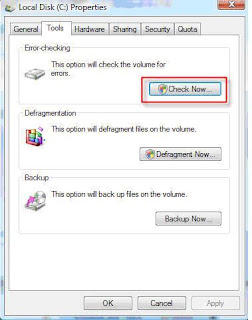
In windows vista there is a disk utility which checks your hard disk for error, bad sectors and recover information. You can troubleshoot your hard disk in windows vista. this is useful vista guide to check your hard disk.

In order to check a disk in Windows Vista, go to my computer and select the drive you want to check right-click on the disk and choose Properties as shown in below snap.

On the Properties page, click the Tools tab and click Check Now.


HOW TO CONNECT TO NETWORK IN WINDOWS VISTA

In windows vista network setting menu is in the start bar by default and easily available for simple user and easy to configure.


In the start bar find Network option.
Then select “Networking and Sharing Centre”
Here you can configure network, manage settings for network, add Computers to Your Network and Repair Connections. This is simple compare to windows xp.

Networking between XP and Vista

Many time windows vista and windows xp in a same network but both machine are not able to see each other. Main reason is windows vista automatically takes name of network as “workgroup” and in windows xp default name is “mshome”. If you make sure that both computer have same network name.
You can change the network name in windows xp by right click on my computer
Choose property
Then select computer name option
Then at the bottom workgroup name give the name what ever you like and
Apply and then ok
You need to restart your windows xp system to apply changes.

To change network name in windows vista
Right click on my computer and then property
Systems many, select change setting
It will pop up computer name, change the workgroup name.
And apply and ok
Windows vista tip for network troubleshooting

Tuesday, March 27, 2012

Clean Install Windows Vista With Upgrade DVDs

Clean Install Windows Vista With Upgrade DVDs


Clean Install Windows Vista With Upgrade DVDsTraditionally, you are required to have a previous installation of Windows before you can upgrade, e.g. have Windows XP on your system before using Windows Vista Upgrade DVDs. What if you have ALREADY upgraded to Windows Vista but are having system issues that require formating and re-installing Windows? Paul Thurrot proposed this hack that lets you install a Windows Vista Upgrade, without needing to re-install Windows XP first:


Boot from the Windows Vista Upgrade DVD and begin the setup program.

When prompted to enter your product key, DO NOT enter it. Click "Next" and proceed with setup - this will install Windows Vista as a 30-day trial.

When prompted, select the edition of Windows Vista which you have purchased and continue with the setup.

Once setup has been completed and you have been brought to the desktop for the first time, run the install program from within Windows Vista.

This time, type in your product key when prompted.

Windows vista printer installation problem and troubleshooting.

Windows vista facing problem with printer installation, some may be due to printer drivers or some problem due to windows vista configuration settings.

You want to use Windows Vista and you want to be able to print to a network printer, you are going to have to use UAC. You turned it off. Turn it back on. You are using the in-built “Administrator” account? Log-out and log-in as a normal admin.
. Microsoft says you have to use UAC to get a printer installed. If you do not use it, you get this ugly message:

Windows cannot connect to the printer. The specified print monitor is unknown.”

This error message shows up is not clear, it has nothing to do with the printer you choose to use or the process you take. This particular message is displayed when trying to add a printer via the wizard:
NEXT HOMEPAGE

.

PAGE STATISTICS