NAVIGATION

Enter a search key word or phrase.

Showing posts with label TIPS. Show all posts

Friday, July 20, 2012

HOW TO REPAIR MBR ON WINDOWS 7


Sometimes you can corrupt Windows' MBR (Master Boot Record) unintentionally, through installation of another operating system for instance, and you need to repair it before Windows can boot again. The error message that you usually get is "Operating System not found". Under Win 95, 98 and ME, you could have used a standard MS-DOS utility called FDISK in the Command Prompt console. However, FDISK is not distributed with Win NT, 2000, XP, Vista, and 7. So you either have to resort to finding an alternative utility called MbrFix.exe and run it from floppy, optical or USB drive or follow these direction from the installation DVD to repair your MBR. While these directions are specific to Win 7, you maybe able to use the knowledge gained to apply to your particular Win install.

Instructions

Step 1:
Insert Win 7 installation DVD and boot from DVD drive. While in some older systems you may have to change boot order through system BIOS, most newer systems allow booting from DVD without changing boot order by simply clicking on any key when prompted to doing so.

Step 2:
Choose your default "Language", "Time", and "keyboard Input" on the first window and click next.

Stepp 3:
You're now presented with 3 choices. Click on

COMPUTER REPAIR- WHAT YOU NEED TO KNOW


Has your computer been testing your patience for a long time? Picture this: you're in the middle of emailing a crucial report to your boss when suddenly, your computer freezes and doesn't respond to your desperate mouse clicks. Or it restarts every now and then, and you wonder why it happens all the time. Don't lose your cool-having your computer repaired can still revive the operation of your machine. If your computer is acting up, don't ignore the symptoms, either. Computer repair should be done as early as possible to prevent further troubles.

It's interesting to note that many people own computers but only a few of them know how to fix computer problems. Usually, computer owners seek the help of computer technicians to correct or solve the problem. That's why computers repair shops proliferate everyday and make lots of money from their customers.

If you're looking for a computer technician, you can find many business cards and fliers that advertise pc repair services. It'd be better if you take your computer to a small repair shop in your locality because its services are less expensive than that of large PC repair shops.

It's not enough to rely solely on the expertise of the person you hired to repair your computer. Try to keep yourself informed about computers so that you won't be deceived by unscrupulous technicians. Also, make sure that the technician you hire is competent and skilled enough. A good repair person can accurately diagnose the problem of your computer and provide a reasonable estimate of cost and repair time.

Always make sure the amount that repair shops charge you is fair. If you think the cost of repairing your pc is expensive, you can request for a detailed description of the tasks that were done and the price of each. If you're still not convinced, then you can try negotiating the price. Asking the repair shop to lower their charge can pay off in some instances.

HOME COMPUTER DOs AND DONTs

As time has evolved over this last decade from 2001 to 2010, our everyday use of computers has increased. We rely on them for more than ever before, and trying to keep them up to date and running smoothing can prove to be more of a chore than actually using it and enjoying it. Regardless if we overlook the general maintenance on our computers, it can prove to be as bad, and as expensive, as if we neglect doing the general maintenance on our cars. The problem is in these days of economic crisis, we have less money to spend to have professionals do the work on our computers, and we take it upon ourselves to try to maintain them and even fix them. I'm here to give you some general do's and don'ts to avoid any severe mistakes that could lead to you being without your computer for a few days, while your local professional fixes your mistakes.

1. Do get yourself a can of compressed air, or a shop vac and clean the dust out of your pc once a month. This helps keep the fans clean and functiong properly, it also makes sure your system is just clean and running smoothly. It fairly easy and not a lengthy process to pop off two screws, remove the side cover and finish rather quickly.

Don't suck up half your computer wires if you choose to use a shop vac. Just be smart and careful and keep your eye on wires. Would suck to have to dig your processor out of the bottom of the shop vac.

2. Do

Tuesday, May 1, 2012

10 reasons why PCs crash

Fatal error: the system has become unstable or is busy," it says. "Enter to return to Windows or press Control-Alt-Delete to restart your computer. If you do this you will lose any unsaved information in all open applications."


You have just been struck by the Blue Screen of Death. Anyone who uses Mcft Windows will be familiar with this. What can you do? More importantly, how can you prevent it happening?

1 Hardware conflict

The number one reason why Windows crashes is hardware conflict. Each hardware device communicates to other devices through an interrupt request channel (IRQ). These are supposed to be unique for each device.

For example, a printer usually connects internally on IRQ 7. The keyboard usually uses IRQ 1 and the floppy disk drive IRQ 6. Each device will try to hog a single IRQ for itself.

If there are a lot of devices, or if they are not installed properly, two of them may end up sharing the same IRQ number. When the user tries to use both devices at the same time, a crash can happen. The way to check if your computer has a hardware conflict is through the following route:

* Start-Settings-Control Panel-System-Device Manager.

How To Change Your IP Address

How To Change Your IP Address


1. Click on "Start" in the bottom left hand corner of screen
2. Click on "Run"
3. Type in "command" and hit ok

You should now be at an MSDOS prompt screen.

4. Type "ipconfig /release" just like that, and hit "enter"
5. Type "exit" and leave the prompt
6. Right-click on "Network Places" or "My Network Places" on your desktop.
7. Click on "properties"

You should now be on a screen with something titled "Local Area Connection", or something close to that, and, if you have a network hooked up, all of your other networks.

8. Right click on "Local Area Connection" and click "properties"
9. Double-click on the "Internet Protocol (TCP/IP)" from the list under the "General" tab
10. Click on "Use the following IP address" under the "General" tab
11. Create an IP address (It doesn't matter what it is. I just type 1 and 2 until i fill the area up).
12. Press "Tab" and it should automatically fill in the "Subnet Mask" section with default

Thursday, April 26, 2012

Be Careful Of Hdd Key Logger - "Agube Smart"

If you visit a cyber cafe and find any black pin attached to the CPU as shown in the picture, do not use that system. This pin is actually a connection which saves all your data you enter in the system. It is a hardware key-logger, very powerful, it records each and every action on your system.
It is a risk to your privacy over the net, at risk are passwords, banking, or any other data you enter...."Originally posted by                     "Agubesmart"
on facebook

Saturday, April 21, 2012

How To Chat With Command Prompt.

Chat With Command Prompt

If you want personal chat with a friend
you don't need to download any yahoo messenger
All you need is your friends IP address and Command Prompt.
Firstly, open Notepad and enter:
@echo off
:A
Cls
echo MESSENGER
set /p n=User:
set /p m=Message:
net send %n% %m%
Pause
Goto A
Now save this as "Messenger.bat". Open the .bat file and in Command
Prompt you should see:
MESSENGER
User:
After "User" type the IP address of the computer you want to contact.
After this, you should see this:
Message:
Now type in the message you wish to send.Before you press "Enter" it should look like this:
MESSENGER
User:27.196.391.193
Message: Hi
Now all you need to do is press "Enter", and start chatting!

Hidden Programs In Xp

Hidden Programs In Windows XP !

Is it strange to hear , but true that some good programs are hidden in Windows XP !!!

Programs :

1. Private Character Editor :

Used for editing fonts,etc.
** start>>Run
** Now, type eudcedit

2. Dr. Watson :

This an inbuilt windows repairing software !
** start>>Run
** Now, type drwtsn32

3. Media Player 5.1 :

Even if you upgrade your Media Player, you can still access your old player in case the new one fails !!!
** start>>Run
** Now, type mplay32

4. iExpress :

Used to create SetupsYou can create your own installers !
** start>>Run
** Now, type iexpress

Solution For Long Beep Problem


Solving Long Beep No Display Problem

Sometimes we will face this Long beep no display error. This particular problem is very easy to solve. Actually this is not the system common problem. But this post is only for home users to solve this small problem.


Sometimes systems will generate some beeps for showing their error. There are more than 5 beep codes, what the problem is system facing? Maximum all are faced with long beep error only. Long beep error comes from motherboard speaker.

To solve this particular problem, you check your RAM. Is it loose contact or failure? Open your CPU left side door and unlock the RAM slots, remove and clean the RAM and reinsert the RAM for 4 to 5 times to solve this problem. After you check the RAM, if problem will not be solved, then change or insert New RAM to solve this problem. 

Thursday, April 19, 2012

Forgot Windows 7 Password?

Many reasons attributed for Windows 7 passwords being forgotten or lost.
Before we find a certain solution to unlock the forgotten Windows 7 administrator password, we need to know the reasons why they were forgotten or lost. Thus in the future or after we successfully unlock the password, we then can avoid similar problem as possible as we can.
Reasons:
1. The Windows 7 password is difficult to remember, long, arbitrary and complex.
2. Frequently changing the password.
3. Having long time away from the computer.
4. Got computer hacked by others etc.
5. Or you are trying to bypass other's password

After we get to know how we forgot or lost our Windows 7 password, we now can start to unlock password Windows 7 with purpose. Step-by-step tutorials on how to unlock Windows 7 admin password:
Solution 1: Use Windows 7 built-in Administrator Account.
You may not know the Windows 7 built-in Administrator account which has full privilege over the computer is without password protected by default. This is because it is hidden so that you cannot notice of it. Therefore, we can unlock password Windows 7 with it if no change to its default settings.
Solution 1:
1. Start computer and then press “Ctrl+Alt+Delete” twice at Windows Login Screen.

Wednesday, April 18, 2012

Before You Format YOur System

Before you Format your System

Sometimes we format our systems to avoid from slow and error problems. Formatting is nothing but erasing all the data. So keep your important files and folder (photos, document and softwares). This article is what you have to do before you format your system.

You thing is backup your important data from C drive to other drives. Desktop and my documents folders also backup to other drives because these folders are in C drive. So backup all other data, other users desktop and my documents.

Second thing is motherboard drivers. If you have a motherboard drivers CD, then start the formatting process. If you don’t have a motherboard CD, then you go to device manager and note your display, sound and LAN drivers manufacture companies. After you download your motherboard drivers and then you start the formatting processor. 

Best File System For Windows Xp

Best File System to Format your System

While formatting process, we have to format our systems. Formatting is a process of deleting entire data on you selected drive or creating tracks and sectors. Formatting is very important process before install Operating System. Which is the best file system for formatting?

Inserting data on sectors and clusters is called file system. There are two file systems are available for windows operating systems. They are FAT32, NTFS. FAT stands for File Allocation Table and NTFS stands for Network Technology File System. FAT32 is old file system and NTFS is new file system.

Tuesday, April 17, 2012

Removing Boot Sector Virus

Many computer users might have faced the message “ BOOT SECTOR VIRUS. PROCEED Y/N? “ during Windows installation thus not allowing to install the operating system or you to boot operating system if already installed. Some motherboard manufacturers have put boot sector virus protection in BIOS. Boot sector is the first sector which contains DOS boot sector or commonly known as MBR (Master Boot Record) of the hard disk drive or floppy. MBR contains information about your hard drive partitions details and from where the operating system has to boot.
If the boot sector virus protection is enabled in the BIOS, it won’t allow you to install operating system because during installation the operating system writes boot code on MBR of the hard disk drive. If you are trying to write anything on MBR, it will consider as virus. To solve this, you have to disable boot virus protection in BIOS

Deleting Virus From System Volume Information.

System Volume Information is a hidden folder. It is a part of System Restore that stores details about system restoration set points. All the partitions or drives on your computer have this folder. Follow the simple steps to delete the virus or trojan infected files located inside System Volume Information folder manually if your existing antivirus did not do the job for you.

Right-click on "MY COMPUTER" and go to "PROPERTIES" to open "SYSTEM PROPERTIES" window or go to "START" and click on "RUN" or hold "WINDOWS" key and press "R" to open RUN window and type "sysdm.cpl" and press "ENTER" key. In the "SYSTEM PROPERTIES" window select "SYSTEM RESTORE" tab and select or check the "TURN OFF SYSTEM RESTORE ON ALL DRIVES" option. You will get the confirmation window to select "YES" or "NO". Click "YES" to remove files stored in System Volume Information folder thus making your system free from virus or trojan.

How To Remove Bad Sectors From Hard Disk

Most people might have faced problems like CRC (Cyclic Redundany Check) or cannot open the files or programs properly. This is because the hard disk might have filled with bad sectors which makes your data unreadable or corrupt. Any data stored in bad sector is likely to be lost. Usually data spreads across the sectors of the hard disk. You get error message if you try opening a file when the data related to that particular file is stored in bad sectors. Bad sectors occur due to physical damage or magnetic head problem in the hard disk. This is an indication that the hard disk would crash soon.

The bad sectors can be recovered by Low Level formatting using DOS command utility "FDISK". You have to use Windows 98 bootable CD or DOS bootable floppy to boot the computer from DOS and type FDISK and press "ENTER" key. FDISK is a utility to create hard disk partitions and format the created partitions. It is always better to remove the bad sector filled partition and create partition again then format the partition using FDISK utility to remove bad sectors. You can use another DOS command SCANDISK to scan for bad sectors, but this command will mark the bad sector to be skipped so that no data is stored in bad sectors but the hard disk will continue having bad sectors.

How To Remove Windows Security Alert From Status Bar Tray

Follow the procedure to turn off automatic windows updates and to remove Windows security alert from status bar tray.
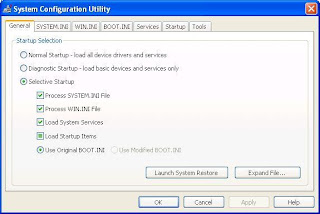
Hold WINDOWS key and press R or go to START and click on RUN to open RUN window. Type
" MSCONFIG " without doubles quotes and press ENTER key or click OK button to open SYSTEM CONFIGURATION UTILITY. 
 Click on SERVICES tab and in the list look for the name SECURITY CENTER and deselect.
Now click OK. You will be asked to RESTART the computer for changes to be affected.
To remove Windows automatic updates:

Monday, April 16, 2012

Do Batteries Realy Last Long In Refregerators

The household battery may look simple, but there's a lot going on in there. It's easy to take them for granted — most of us can't remember a time without them. Still, batteries are nothing short of amazing. They're power in the palm of your hand.
A recent article on gizmodo.com found that the best value for AA batteries came from RS Power Ultra — which, sadly, you can't buy in the states. The worst was the Panasonic Evolta. The right battery for you will come down to trial and error — most name brands are comparable.
However, the following tips will dispel some of the classic myths about these portable power sources.
1. Should you store your batteries in the fridge?
Maybe.
When I was a kid,..

How To Clone A Hard Drive

Most of the users used the computer to store their important data. These data might be download or taken from the friend. There is a vast of collection that you store. These media files include yours personal or non personal data. You also prefer to store your office data on it. Most of the users are not aware the use of the computer uses and its crashes. There is many type of crashes such as blue screen or the dump memory error. Crash is the conditions in which your computer can't starts or work properly due to some internal or external problem. You even can't show the information of your computer. There are many reasons of your computer crash. Some of them are hardware, software, virus, registry and many other causes of your system crashes. These crashes may lead your system to the physical dump memory messages. This type of messages is harmful for your system. For that; you need to overcome the problem by making the copy of your data or backing up your data.
These crashes lead your system to the hard disk failure. Hard disk failure is that situation in which your system can't boot properly. There are many causes such as hardware, software, registry viruses and many others. Hardware fault tolerance is the major cause of the hard disk failure. It damages your whole system also the loss of your important data. You can easily prevent from this type of disaster by using redundancy module. In this module, one is the active and the other are on standby. One of the major cause that is harmful for your system, which is the use of unregistered software installing on your system. Most of the disk failure is occurred due to this software on your system. Viruses are also the cause of the disk failure. It can damage the whole system data.

Why YOu Should Upgrade Your Ram

Like human have souls, similarly computers do have the souls as well in guise of computer memory that comes in three forms named Random Access Memory or RAM, the Read Only Memory or ROM and the hard disk memory. With the continuous and constant development in technology, computer memory is also undergoing constant up-gradations.
However, proper and effective functionality of computer completely depends upon the size of its memory i.e. be it RAM, ROM or hard drive. In the earlier days of computer, even 640K of memory was sufficient for a computer user but as time changed the needs and requirements as well as the usage of computer also changed. Today, even a gigabyte of RAM is not enough to run the applications and store other important data and documents. So to fulfill the expectations of computer users, various technical companies have started manufacturing high-end RAM such as 512mb Pc2100 DDR 266mhz Sodimm memory and Cl2 5 Pc2100 DDR 266mhz memory.
Moreover, before installing updated RAM on your computer or laptop, it is quite important to keep in mind some vital points to choose the best so as to avoid any kind of future issue or problem. Random Access Memory or commonly known as RAM is a form of temporary data storage and DRAM and SRAM are its two main types. DRAM that is Dynamic RAM is the most commonly opted type of RAM due to its low cost whereas SRAM, Static RAM does not require being constantly refreshed. Still, with this continuous updation of RAM, choosing the mostcompatible RAM form and size for computer has become difficult.
As few of these devices are costly so it is sometimes impossible for small business houses a

Tuesday, April 10, 2012

5 Common Disk Burning Mistakes And How To Avoid Them

Though some people speculate that DVDs and optical drives in general are on their way out, the truth is that compact discs and DVDs will probably be with us for awhile. One of the major problems with burning DVDs is that they're often difficult to create reliably without any problems. There are plenty of mistakes that users commonly make that waste discs and time when burning DVDs. Here are the top five DVD burning missteps as well as how to avoid them.
Setting The Speed Too High
DVD burners and multipurpose optical drives are rather amazing creations when you think about it, capable of writing millions of bytes of data per second to discs flawlessly under most circumstances. Still, they are operating at thousands of revolutions per minute and aren't completely infallible. To ensure that your DVD replication doesn't result in errors, select a write speed of 8X.
Using Deficient Media
Not all blank discs are creating equally, and using lousy DVD-Rs or DVD-RWs is the surest way to create a disc that won't work when you pop it into the tray the next time around. To avoid this annoying scenario, make sure that you only use the best DVDs you can find. Spending a little extra on optical media can save you a lot of frustration further on down the line.
Forgetting to Verify Your Disc
NEXT HOMEPAGE

.

PAGE STATISTICS